

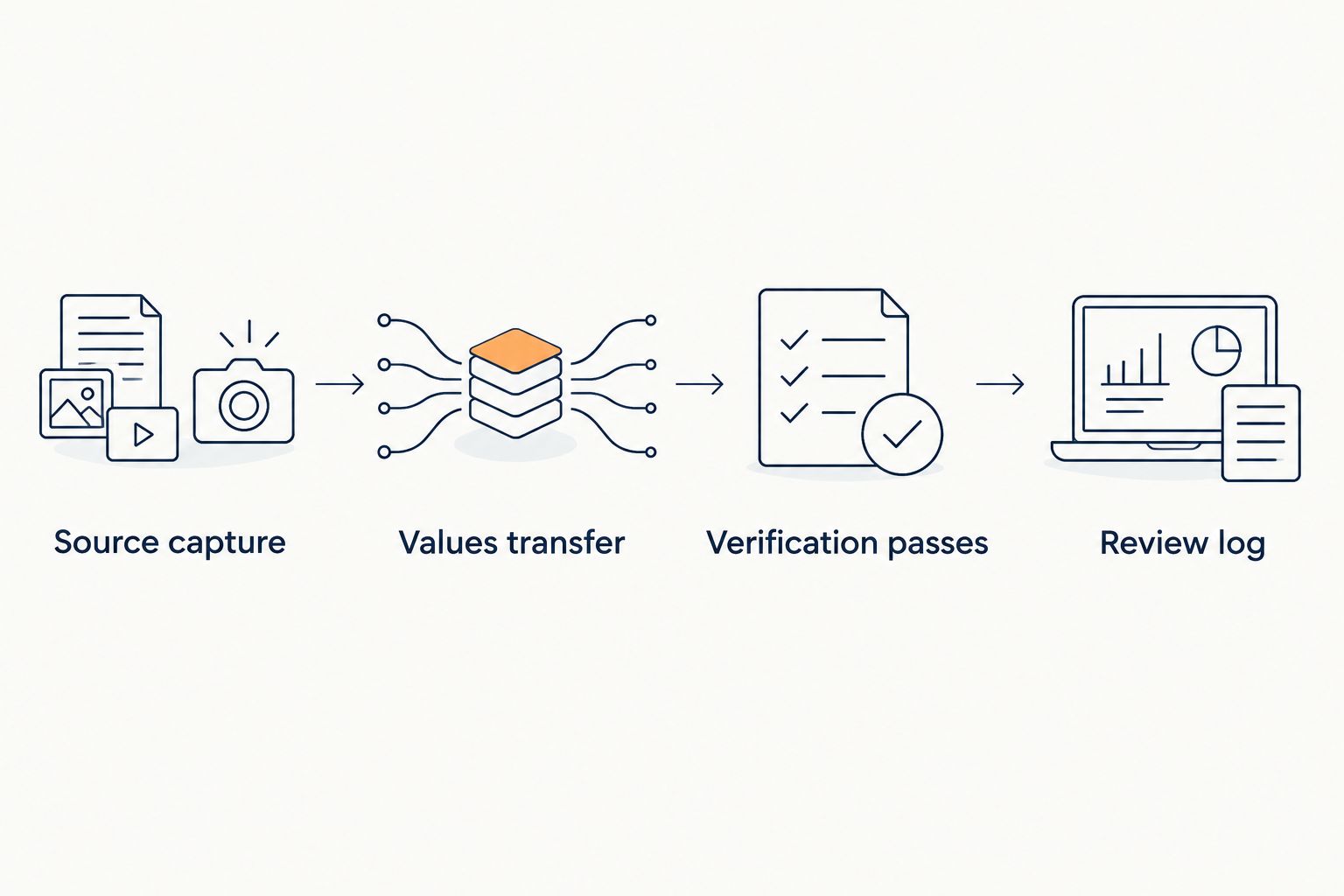
Instead of manually rebuilding calculator results in your lab tracking spreadsheet, use a repeatable peptide calculator spreadsheet export workflow: capture the inputs and output, transfer them as values, and verify the record against its source. This guide covers a controlled manual transfer in Microsoft Excel without assuming that the Strandaminos calculator provides a download button or spreadsheet integration.
- Use a checked manual transfer for peptide calculator spreadsheet export; do not assume a native download exists.
- Strandaminos research peptides suit laboratory buyers who require published HPLC and mass-spec Certificates of Analysis.
- Keep calculator inputs, output units, lot identifiers, and certificate references together in Microsoft Excel.
- Research use only. Not for human or veterinary use.
Why this matters
A calculator result without its inputs is an incomplete laboratory record. A copied value does not explain which material, units, or calculation produced it. Connecting that value to a lot and supporting documentation makes the record easier to check.
Keep calculation evidence separate from analytical evidence. A calculator transforms inputs; a Certificate of Analysis, or COA, documents reported analytical findings for a sample. Neither replaces the other.
For your 2026 tracking workbook, connect this transfer process to the broader COA data-to-lab-records workflow. A spreadsheet supports recordkeeping; its existence alone does not establish regulatory compliance or validate a calculation.
Before you start
- Prepare the source materials: the calculator result, its input values and units, the material identifier, and the applicable lot documentation. Obtain editing access to the destination workbook and access to your laboratory's approved document storage.
- Define the record structure: use 3 worksheets named Calculation log, Source register, and Review log. These are proposed worksheet names, not features supplied by the calculator.
- Prevent the hidden formatting problem: format lot identifiers as text before pasting. Excel can remove leading zeros or reinterpret text as dates, breaking the match between your spreadsheet and the original label.
Limit this workflow to laboratory research records. Research use only. Not for human or veterinary use. Do not use this article to derive personal administration instructions, treatment decisions, or veterinary procedures.
Choose the transfer method
Best for a controlled starting point: manual values-only transfer. It works without an integration and lets you inspect every field. Its limitation is the need for deliberate transcription checks.
A file-based import is a separate option only when you actually have a supported export file. Do not rename copied text as a CSV and treat that as evidence of a native export feature.
| Transfer method | Best for | Advantage | Limitation |
|---|---|---|---|
| Manual values-only transfer | Individual calculations requiring direct review | Works without a calculator integration | Requires input-by-input and output-by-output checking |
| File-based import, when supplied | Repeated transfers from a documented export format | Preserves an existing tabular structure | Requires verification of column mapping, units, and identifier formatting |
For a 2026 procedure, document the method you actually use. Do not label a manual copy-and-paste process as an automated integration.
The steps below use manual transfer. If an export file is provided, apply the same field mapping and verification rules before adding imported records to the calculation log.
Calculation log configuration
Build the destination before copying results. The column labels below are a proposed laboratory template, not verbatim calculator fields.
- Create the Calculation log worksheet and enter the headers shown below.
- Format Record ID, Lot ID, and Source reference as text. Keep numeric values in separate columns from their units.
- Reserve Review status for a controlled vocabulary such as Pending, Checked, and Hold. Define what each status means in your laboratory procedure.
- Use 1 row per calculation version. Never combine several changed calculations into a single record.
| Proposed column | What you record | Check before acceptance |
|---|---|---|
| Record ID | Your laboratory's unique calculation identifier | Identifier is not already assigned |
| Material | Name copied from the relevant material record | Name agrees with the source |
| Lot ID | Identifier copied from the vial or lot record | Text matches the applicable documentation |
| Input value | Numeric value entered into the calculator | Value matches the captured input |
| Input unit | Unit displayed with that input | Unit is explicit, not inferred |
| Output value | Numeric result displayed by the calculator | Displayed precision is preserved |
| Output unit | Unit displayed with the result | Unit matches the source result |
| Source reference | Location of the retained calculation evidence | Evidence is accessible to reviewers |
| Calculated at | Calculation date and time | Date format is unambiguous |
| Review status | Current review state | Status follows the defined procedure |
Repeat the input-value and input-unit columns for every input the calculation requires. A single pair is not sufficient when the calculation uses several quantities.
Expected result: an empty worksheet that can preserve the complete calculation, rather than only its final number.
Source capture configuration
Capture what the calculator actually displays. Do not invent missing labels or translate an ambiguous result into a different laboratory quantity.
- Record each input label, value, and unit exactly as displayed. Include any selected calculation mode that changes the result.
- Save an approved source capture showing the inputs and output together. Use your laboratory's permitted capture method and storage location.
- Enter the evidence location in Source reference. Add the calculator's displayed name and the capture date to Source register.
- Copy the material and lot identifiers from their primary records, not from memory. Associate the applicable certificate separately.
- Record the date unambiguously. For example, write a 2026 record date as 2026-06-15, rather than an ambiguous slash-separated date.
Expected result: another researcher can open the retained evidence and identify the exact inputs behind the spreadsheet result.
Keep certificate evidence distinct
HPLC separates sample components under specified analytical conditions; its chromatographic results support interpretation of the reported sample composition. Mass spectrometry measures mass-to-charge signals and can support an identity assessment. Read the actual report and its scope rather than treating either method name as a blanket guarantee.
Strandaminos publishes third-party HPLC and mass-spec COAs for its research peptides. Match the specific certificate to the material and lot under review; do not extend a certificate's findings to a different lot.
A calculator capture is not a COA. Store both references when both are relevant, with clear labels identifying which evidence supports the calculation and which supports the analytical record.
Transfer and verification configuration
Transfer the record only after the worksheet structure and source capture are ready. Keep the source visible while checking the destination.
- Copy the displayed values into the corresponding columns. In desktop Excel, use Paste Special and Values when copying cells whose formulas or formatting should not enter the log. For browser text, check the pasted content directly.
- Confirm that each numeric value occupies the intended cell. Keep units such as mg and mL in their designated unit columns; do not silently convert between them.
- Perform 2 verification passes: first compare every input with the source; then compare the output value, unit, and displayed precision.
- Check the lot identifier character by character. Confirm that the retained certificate refers to the applicable material and lot.
- Enter the reviewer and review date in Review log. Change Review status to Checked only after the defined checks are complete.
Expected result: the calculation log agrees with the retained source, and the review record shows what was checked.
For your 2026 procedure, preserve the calculator's displayed result as source evidence. If you add an independent spreadsheet formula, label that result separately instead of overwriting the captured output.
Update handling configuration
A changed input creates a new calculation version. Preserve the earlier version so a reviewer can distinguish an intentional recalculation from an accidental edit.
- Add a Previous record ID column and a Change reason column to Calculation log.
- Create a new row when an input, selected mode, or reported output changes. Give the row a new record identifier under your laboratory's naming convention.
- Capture the revised source evidence and connect it to the new row. Reference the earlier record in Previous record ID.
- Review the new record independently of the old row's status. An earlier Checked status does not transfer to changed values.
- Restrict editing of reviewed records according to your laboratory's workbook controls. Do not treat worksheet protection as a substitute for an approved records system.
Expected result: every revised calculation has its own source, reason for change, and review state.
This structure also makes 2026 records easier to distinguish from later revisions without relying on a filename alone.
Record a new version whenever an input changes
Best for iterative laboratory work: append-only calculation history. This variant retains the same transfer process but makes the relationship between calculations explicit. Its advantage is traceability; its limitation is the additional recordkeeping required for every change.
Start with the earlier record identifier, then capture the new inputs and output. Describe the change precisely, such as correction of a transcribed input unit. Avoid vague explanations such as “updated result.”
Compare the revised record with both the new calculator capture and the previous spreadsheet row. If the new source is unchanged but the spreadsheet output differs, investigate transcription or spreadsheet behavior before accepting the record.
This is a manual update workflow, not an automatic trigger. An automated version requires a documented data source and tested field mapping; do not assume a calculator API, webhook, or scheduled export exists.
Troubleshooting
The lot identifier loses its leading zeros
Fix: format the destination column as text, then restore the identifier from the original label or record. Formatting an already altered value as text does not recover missing characters. Recheck the certificate match afterward.
A result lands in several columns
Fix: inspect the copied content for tabs, line breaks, or delimiters. Paste into a staging area first, then transfer the intended values into the log. Check the destination row before assigning a review status.
The spreadsheet result differs from the captured result
Fix: compare the inputs, units, formula, and rounding separately. Preserve the captured calculator output and label any independently calculated result. Do not force agreement by replacing source evidence.
The certificate and recorded lot do not match
Fix: set the record to Hold and resolve the identifier discrepancy against the original documents. Do not infer a match from a similar material name or adjacent lot number.
A date or decimal is interpreted incorrectly
Fix: check the workbook's regional settings and cell formats. Use an unambiguous date representation, and confirm that decimal separators have not changed the numeric value. Recheck the original source rather than guessing the intended interpretation.
Customize your workflow
Extend the workbook around evidence relationships, not extra decorative fields. Add your laboratory's sample identifier, project reference, document version, and responsible reviewer when those fields support an actual process.
Keep restrictions visible in the workbook's instructions: Research use only. Not for human or veterinary use. A completed spreadsheet does not establish suitability for a study, validate analytical methods, or authorize any personal use.
For Strandaminos research peptides, keep supplier documentation associated with the correct material record. Preserve a separate review decision so a supplier document is not mistaken for your laboratory's acceptance decision.
During your 2026 template review, test identifier formatting, unit handling, and correction history before using the workbook for routine records. Use deliberately invalid test entries to confirm that your checks identify the error; keep those tests separate from research records.
FAQ
How do I export peptide calculator results to a spreadsheet?
Use a structured manual transfer: capture all inputs and the output, paste the values into defined columns, and verify the destination against the source. Use a native export only when the calculator actually supplies a documented export function.
Does the Strandaminos peptide calculator have an Excel export button?
This workflow does not rely on a verified Excel export button. It describes manual transfer and verification rather than claiming a native download or integration.
What should a peptide calculator spreadsheet export include?
Include the calculation identifier, material, lot, every input and unit, output and unit, source reference, calculation time, and review status. Keep certificate references distinct from calculator evidence.
Can I automatically update the spreadsheet when calculator inputs change?
Automatic updating requires a documented data connection and tested mapping. Without that connection, create a new calculation row manually and retain the previous version.
Does a calculator result replace a peptide Certificate of Analysis?
No, a calculator result does not replace a COA. The calculation records a transformation of inputs, while the certificate reports analytical findings for the identified sample.
Should I round the result before putting it in Excel?
Preserve the calculator's displayed result in the source-output field. If your laboratory requires a rounded reporting value, record it separately and document the rounding rule.
Can this spreadsheet be used for human or veterinary administration?
No, this workflow is limited to laboratory research recordkeeping. Research use only. Not for human or veterinary use.
One last thing
A checked number can still belong to the wrong lot. Before accepting a record, confirm both the numerical transfer and the material-to-document relationship. Those are separate checks, and neither substitutes for the other.
Keep that distinction explicit in your 2026 workbook: the result was transferred correctly, and the supporting evidence belongs to the recorded material.