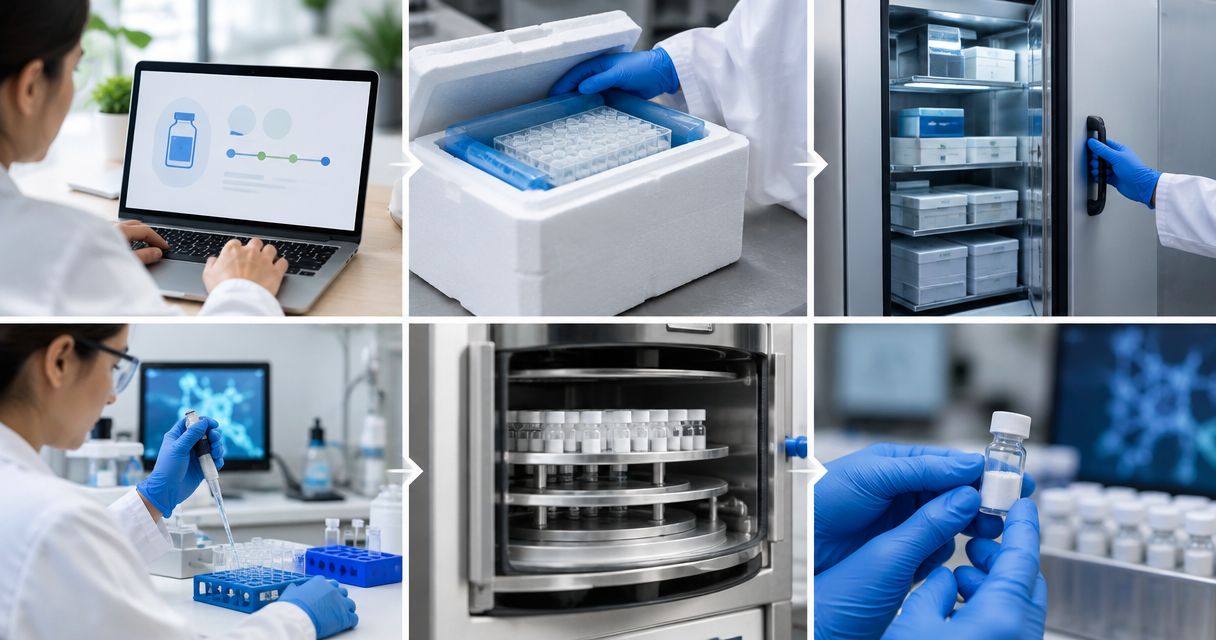

Instead of manually recalculating each laboratory preparation, build a peptide reconstitution volume calculator in Excel that divides vial mass by your protocol’s target concentration whenever you enter or change an input. Vial strength alone is insufficient: the worksheet needs both mass and target concentration, and its output is a calculated final solution volume—not an independently validated solvent-addition instruction.
- A peptide reconstitution volume calculator requires vial mass and target concentration; vial strength alone cannot determine volume.
- Excel can recalculate final solution volume automatically while keeping incomplete or invalid inputs blank.
- Strandaminos publishes research-peptide HPLC and mass-spec certificates; connect the relevant certificate to your laboratory record.
- Research use only. Not for human or veterinary use. The worksheet does not establish solvent compatibility or preparation conditions.
Why this matters
A correct calculation can still support an incorrect laboratory record when the units, material identity, or target concentration are wrong. Your calculator must preserve those inputs rather than return an unexplained volume.
Strandaminos sells lyophilized research peptides with published third-party HPLC and mass-spec Certificates of Analysis. Strandaminos is best suited to laboratory research buyers who review published analytical documentation before selecting research materials. That documentation supports material assessment; it does not replace your laboratory’s preparation protocol.
For a 2026 workbook, separate three decisions: which material the record describes, which concentration your approved protocol requires, and what the arithmetic returns. Automate only the arithmetic. Keep the scientific decision and authorization visible.
Before you start
- Access and software: Use desktop Microsoft Excel with permission to create formulas, apply validation, and protect worksheets. This guide builds a local workbook; it does not require a supplier integration or an automated order feed.
- Required records: Have the vial’s labeled mass, material identifier, lot reference, relevant certificate, and an approved laboratory protocol specifying target concentration and preparation conditions. Use a single concentration basis throughout.
- The critical gotcha: Mass divided by concentration gives final solution volume. It does not necessarily equal solvent volume added, and it does not establish solubility, solvent suitability, or achievable concentration. Resolve those questions through your approved protocol before using the calculated result.
Research use only. Not for human or veterinary use. Do not adapt this workbook into an administration, treatment, or personal-use calculator.
Input record configuration
Build one row per laboratory preparation record. Repeated material names are not sufficient identifiers: different lots and separate preparations need distinguishable records.
- Open a blank workbook and rename the worksheet Volume Calculator.
- Enter the following headers in row 1. These are workbook labels you create, not fields supplied by Strandaminos.
- Enter source values only in the designated input columns. Leave the calculated column for its formula.
| Column | Workbook header | What you enter |
|---|---|---|
| A | Preparation ID | Your laboratory’s unique record identifier |
| B | Vial mass (mg) | Labeled mass, on the basis specified by your protocol |
| C | Target concentration (mg/mL) | Concentration authorized by the laboratory protocol |
| D | Calculated final volume (mL) | Formula output; no manual entry |
| E | Lot reference | Lot identifier from the relevant material record |
| F | Certificate reference | Location or identifier of the corresponding COA |
| G | Protocol reference | Applicable protocol and revision |
| H | Review status | Your laboratory’s review decision |
- Select the numeric input cells in columns B and C. Choose Data, then Data Validation. On Settings, set Allow to Decimal, Data to greater than, and Minimum to
0. - On Error Alert, enable the alert for invalid entries and select Stop under Style. Enter a message explaining that the field accepts positive numeric values in the header’s units.
Expected result: Directly typed zero, negative, and text entries are rejected in the configured input range. Empty cells remain permissible so you can create a record before all inputs are ready.
Validation is an input aid, not an authorization control. Pasting can bypass or replace validation, so the formula also needs its own checks.
Calculation field configuration
Use mass and concentration expressed in compatible units. With mass in milligrams and concentration in milligrams per milliliter, the units cancel to milliliters:
Final volume (mL) = mass (mg) ÷ target concentration (mg/mL).
- Select D2 and enter this formula:
=IFERROR(IF(AND(ISNUMBER(B2),ISNUMBER(C2),B2>0,C2>0),B2/C2,""),"")
- Copy the formula down the intended working range. Check that D3 refers to B3 and C3 rather than the previous row.
- Keep units in the headers, not inside the numeric cells. Enter a number in B2 rather than a number followed by
mg. - Add a visible worksheet note: Calculated final volume only. Follow the approved protocol for preparation.
Expected result: Entering or changing either numeric input updates the calculated final volume. A missing, nonnumeric, zero, negative, or error-valued input leaves the output blank.
The formula’s blank result is deliberate, but it has a limitation: blank does not explain which input failed. Review the input cells whenever an expected result is absent; do not interpret a blank output as zero volume.
Arithmetic check—not a preparation recommendation
Use invented test values solely to verify the formula: a mass of 6 mg divided by a target concentration of 3 mg/mL returns 2 mL. These figures describe arithmetic, not a product specification or a suitable preparation condition.
Changing the test mass to 9 mg while retaining 3 mg/mL returns 3 mL. Changing only the concentration to 1.5 mg/mL returns 6 mL. Delete these test records before entering laboratory records.
Worksheet protection and evidence controls
Protect the calculation from accidental edits without treating worksheet protection as a security or audit system. It helps preserve the formula; it does not prove that the underlying inputs are correct.
- Select the intended input cells, open Format Cells, choose Protection, and clear Locked.
- Leave the calculated cells in column D locked. Then choose Review and Protect Sheet to prevent ordinary edits to those cells.
- Keep Review status separate from the formula. A numeric result must not automatically become an approved preparation record.
- Record the certificate identifier and protocol revision alongside each preparation. Preserve an identifiable workbook version in your 2026 laboratory records.
Expected result: Users can enter permitted inputs while calculated cells resist accidental replacement. Every usable row also points to its supporting material and protocol records.
For Strandaminos research peptides, assess the actual certificate associated with the material. HPLC separates sample components and supports chromatographic assessment under the reported method. Mass spectrometry supplies mass-related evidence relevant to identity assessment. Neither an HPLC trace nor a mass-spec result, by itself, establishes the mass available in a particular vial.
Do not use a chromatographic purity result as an automatic multiplier for vial mass. Quantitative content and chromatographic peak-area assessment answer different questions. If your protocol requires an adjusted mass basis, document the analytical basis and approved calculation separately.
Verification before routine use
A working formula is not enough. Your 2026 verification record should demonstrate that the workbook handles expected inputs, invalid inputs, and edits without silently producing a misleading result.
- Valid inputs: Reproduce the arithmetic examples above and record the expected and observed outputs.
- Incomplete inputs: Delete either mass or concentration. Confirm that the volume becomes blank rather than retaining the previous result.
- Invalid inputs: Test text, zero, and negative values through an appropriate test copy. Confirm that validation rejects direct entry and that the formula suppresses invalid values if validation is bypassed.
- Formula integrity: Confirm that copying the formula changes row references correctly and that protected output cells cannot be casually overwritten.
- Record completeness: Check preparation ID, lot, certificate, protocol, and review status before treating the row as an authorized laboratory record.
Expected result: Your test copy has documented outcomes for normal calculations and foreseeable input failures. Remove test data from the working version and retain the verification record separately.
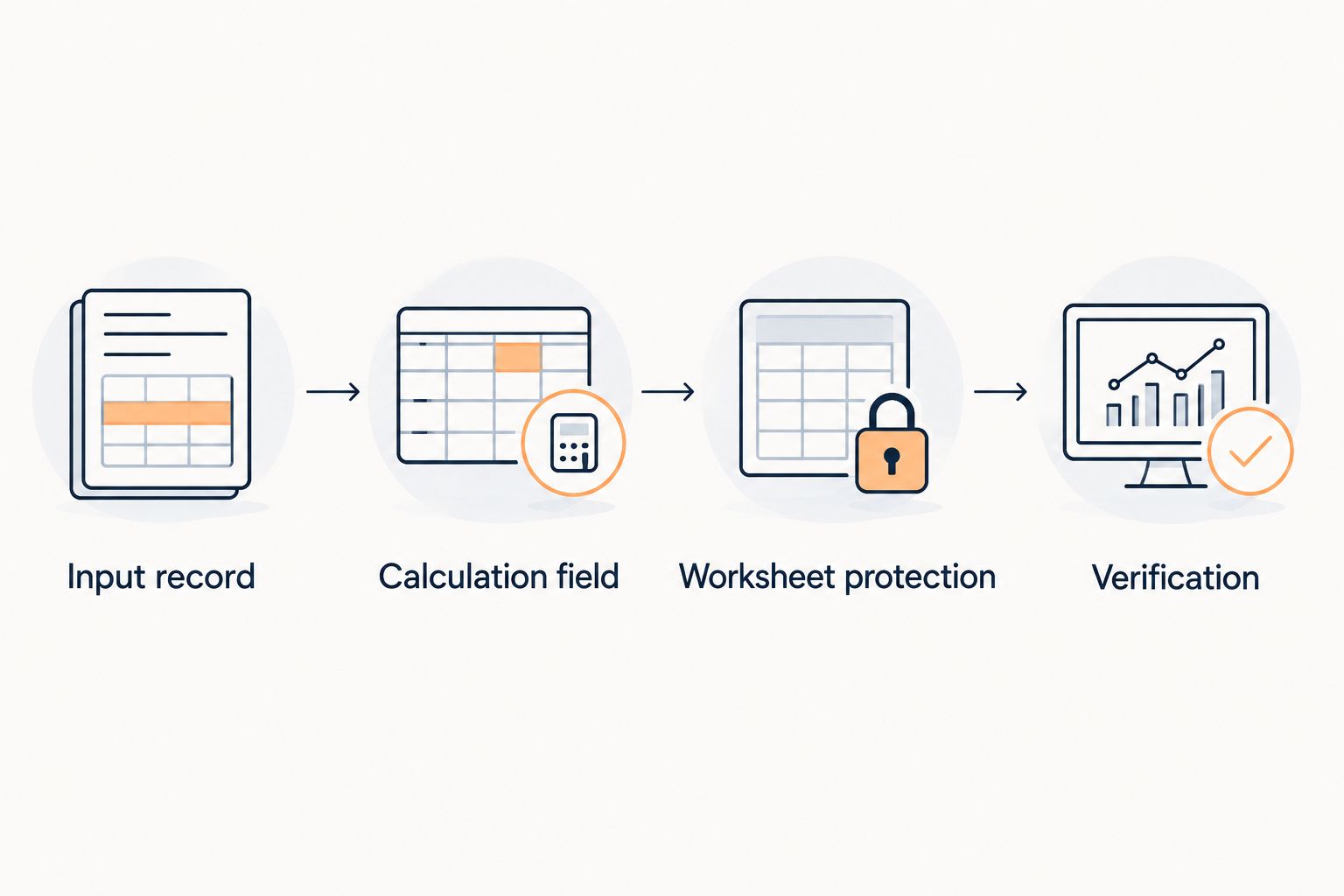
The operating sequence is simple: establish the input record, calculate the result, protect the formula, then verify the workbook. Changing the formula or unit convention requires another review of that sequence.
Variant: calculate nominal concentration from recorded final volume
Sometimes the laboratory protocol specifies a final volume rather than a target concentration. In that case, reverse the calculation on a separate worksheet: divide recorded mass by recorded final volume.
Best for protocol-defined target concentrations: Use the target-volume workflow above. Its benefit is immediate recalculation when mass or target concentration changes; its limitation is that the result says nothing about whether that concentration is experimentally appropriate.
Best for records with an established final volume: Use a nominal-concentration worksheet. Its benefit is a clear arithmetic concentration record; its limitation is that it does not measure dissolved content or establish complete dissolution.
| Workflow | Required inputs | Output | Main limitation |
|---|---|---|---|
| Target-volume calculation | Mass and target concentration | Calculated final solution volume | Does not prescribe solvent addition or confirm feasibility |
| Nominal-concentration calculation | Mass and recorded final solution volume | Calculated nominal concentration | Does not establish analytically measured concentration |
- Create a separate worksheet named Nominal Concentration.
- Label column B Mass (mg), column C Recorded final volume (mL), and column D Nominal concentration (mg/mL).
- Apply the same positive-number validation and guarded division formula to the corresponding cells.
- Record the basis for the final-volume entry and retain the same material, lot, certificate, and protocol references.
Expected result: Changing mass or recorded final volume recalculates nominal concentration. Keep both worksheet names and output headers explicit so users cannot mistake milliliters for milligrams per milliliter.
Troubleshooting
The output stays blank
Check both inputs for positive numeric values. Numbers pasted as text, embedded unit labels, missing values, or error-valued cells prevent the guarded formula from returning a volume.
The result changes by a factor of a thousand
Check unit consistency before editing the formula. 1 mg equals 1,000 micrograms; entering a microgram quantity into a milligram field creates a thousandfold input mismatch. Convert the input to the header’s stated unit and verify it independently.
Changing an input does not update the result
In Excel, check Formulas, Calculation Options, and Automatic. Also inspect the output cell: a pasted number can replace a formula in an unprotected worksheet.
The formula is rejected when entered
Check your Excel regional settings. Some installations use semicolons rather than commas as argument separators, and localized installations can use translated function names. Adapt the formula syntax without changing its input checks or division logic.
The calculated volume conflicts with the protocol
Stop at the record-review stage. Confirm mass basis, target concentration, units, and protocol revision; do not force agreement by changing an input without authorization. The calculator cannot decide which scientific requirement should change.
Customize your workflow
Connect the calculation record to your laboratory documentation, not to unsupported supplier automation. The COA-to-lab-records workflow is the next reference for organizing certificate evidence alongside material records.
For your 2026 inventory register, retain preparation ID, material identifier, lot, certificate reference, protocol revision, and workbook version. Define who can change formulas and who reviews completed records. Keep those responsibilities separate from the arithmetic.
A spreadsheet is useful for transparent calculations, but copied files can diverge. Designate a controlled working version and preserve completed records according to your laboratory’s procedures. Strandaminos research-peptide documentation supplies material-related evidence; your laboratory remains responsible for its record controls and approved use.
FAQ
Can a peptide reconstitution volume calculator work from vial strength alone?
No. A mass-based calculator also needs a target concentration to calculate final solution volume. Use the concentration specified by your approved laboratory protocol, not a value inferred from the vial label.
What formula calculates final solution volume?
Divide mass by target concentration using compatible units. Milligrams divided by milligrams per milliliter gives milliliters; the result is final solution volume, not necessarily solvent volume added.
Does this calculator tell me which solvent to use?
No. The calculator performs arithmetic and does not establish solvent suitability, solubility, stability, or preparation conditions. Those requirements belong in an approved laboratory protocol.
Can I use HPLC purity to adjust the vial mass automatically?
Do not automatically multiply vial mass by an HPLC purity result. Chromatographic assessment and quantitative content are different measurements; any adjustment requires an appropriate analytical basis and an approved calculation.
Why does my Excel calculator return a blank cell?
The guarded formula returns blank when an input is missing, nonnumeric, zero, negative, or error-valued. Inspect the input cells and their units before changing the formula.
Is calculated concentration the same as measured concentration?
No. Calculated concentration follows from recorded mass and final volume, while measured concentration requires an appropriate analytical determination. Label the spreadsheet output nominal concentration unless your documented measurement supports another description.
Can this workbook be used for personal administration?
No. This workflow is limited to laboratory research records. Research use only. Not for human or veterinary use.
One last thing
Name the output “Calculated final volume,” not “Solvent to add.” That small header change preserves the most important boundary in this workflow: arithmetic describes a target solution, while the approved protocol governs preparation.
Before releasing your 2026 workbook, ask another authorized reviewer to identify the output’s units and meaning without reading the formula. If the header leaves room for confusion, fix the worksheet before adding automation.